
Close Menu

    Subscribe to Updates

    Get the latest creative news from FooBar about art, design and business.

    What's Hot

    Influential vaccine advisory panel ACIP may be ‘disbanded’ after lawsuit, says former vice chair

    NHS was ‘on brink of collapse’ during pandemic, Covid inquiry finds | NHS

    Trump Makes Pearl Harbor Joke In Meeting With Japan’s Prime Minister

    Facebook X (Twitter) Instagram
    Facebook X (Twitter) YouTube LinkedIn
    Naija Global News |
    Thursday, March 19
    • Business
    • Health
    • Politics
    • Science
    • Sports
    • Education
    • Social Issues
    • Technology
    • More
      • Crime & Justice
      • Environment
      • Entertainment
    Naija Global News |
    You are at:Home»Technology»Don’t Tell Anyone, but Here’s How to Lock and Hide Apps on Your iPhone
    Technology

    Don’t Tell Anyone, but Here’s How to Lock and Hide Apps on Your iPhone

    onlyplanz_80y6mtBy onlyplanz_80y6mtOctober 16, 2025004 Mins Read
    Share Facebook Twitter Pinterest LinkedIn Tumblr Email
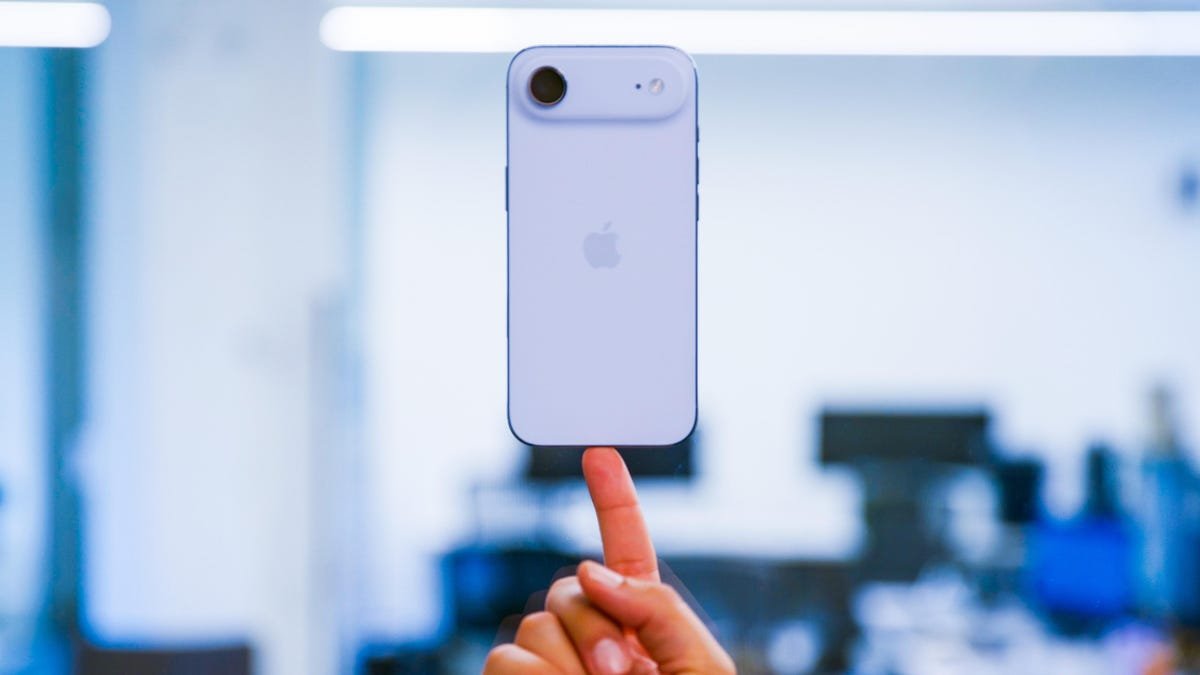
    iPhone Air
    Jesse Orrall/Zooey Liao/CNET
    Share
    Facebook Twitter LinkedIn Pinterest Email

    Sometimes my nephew wants to watch monster truck videos on my iPhone so I’ll pull up a video on YouTube and hand him my phone. But if I get distracted by something else, he’s suddenly looking through my Amazon app and about to buy a monster truck toy — or five. Luckily, Apple lets you lock and hide apps so I can keep my nephew out of my shopping apps so I don’t suddenly have a $500 charge for various monster truck memorabilia.

    When Apple released iOS 18 in 2024, the tech giant introduced a feature to lock certain apps on your iPhone. That way you can keep kids and others out of your apps. You can also hide certain apps in their own hidden folder so others are not tempted to open them and invade your privacy. So now I can hand my nephew my iPhone and not worry that he might get into something he shouldn’t be in.

    Here’s how to lock and hide your iPhone apps for an extra layer of security. 

    Don’t miss any of our unbiased tech content and lab-based reviews. Add CNET as a preferred Google source.

    How to lock your iPhone apps

    1. Long press an app.
    2. Tap Require Face ID.
    3. Tap Require Face ID again.

    Apple/Screenshot by CNET

    Now every time you try to access this app, it will need your Face ID or passcode to open. You can’t lock every app on your iPhone. Some apps, like Camera, Find My and Settings can’t be locked. But you can lock most apps, such as App Store, Messages and third-party apps.

    How to hide your iPhone apps

    Hiding apps on your iPhone also locks them. It follows the same process as locking apps. Keep in mind this option isn’t available for all apps. In my experience, you can only hide third-party apps, such as Instagram and Twitter.

    Here’s how you can hide these apps on your iPhone.

    1. Long press an app.
    2. Tap Require Face ID.
    3. Tap Hide and Require Face ID.

    Your iPhone will then ask for your Face ID or passcode, then it will ask if you’re sure you want to hide the app. A new menu will appear on your phone that says hiding an app will remove its icon and name from your home screen and place it in a Hidden folder in your App Library. The menu will also say you won’t receive any notifications from the app.

    Apple/Screenshot by CNET

    Tap Hide App at the bottom of the menu and your iPhone will hide the app. To see your hidden apps, swipe right until you’re in your App Library. Scroll to the bottom of the page where you’ll see a folder labeled Hidden with a symbol that looks like an eye with a line across it. Tap this folder and enter your Face ID or passcode. The folder will then display your hidden apps.

    Apple/Screenshot by CNET

    It’s important to note that if you do hide apps in the Hidden folder, you can still see those apps in other places on your iPhone, like in the Battery Usage menu in Settings.

    How to unhide and remove locks

    If you want to unhide or remove a lock from an app, long press on the app, tap Don’t Require Face ID and enter your Face ID or passcode. Your locked apps will now be unlocked and your hidden apps will be removed from the Hidden folder.

    Unhiding apps doesn’t automatically put them back on your home screen. To add an app back to your home screen, go to your App Library, long press on the app and tap Add to Home Screen. 

    For more iOS news, here’s my review of iOS 26, as well as how to reduce the Liquid Glass effects and how to block spam calls in the update. You can also check out our iOS 26 cheat sheet.

    Watch this: iPhone 17 Preorders Spike, Satellites Expose Unencrypted Data, Nvidia’s AI Personal Supercomputer | Tech Today

    03:03

    apps dont Heres Hide iPhone lock
    Share. Facebook Twitter Pinterest LinkedIn Tumblr Email
    Previous ArticleThursday Night Football predictions, odds, line: Steelers vs. Bengals picks from expert on 36-18 run
    Next Article UK ministers met fossil fuel lobbyists 500 times in first year of power, analysis shows | Oil and gas companies
    onlyplanz_80y6mt
    • Website

    Related Posts

    Humans in the Loop and Education Don’t Really Mix

    March 19, 2026

    Juries want fairness in court and don’t just obey the government. That’s why ministers are attacking them | Michael Mansfield

    March 17, 2026

    ‘I don’t give a shit about Iran. I don’t want to pay higher gas’: Motor City motorists feel pinch as gas prices surge | Detroit

    March 13, 2026
    Add A Comment
    Leave A Reply Cancel Reply

    Top Posts

    Watch Lady Gaga’s Perform ‘Vanish Into You’ on ‘Colbert’

    September 9, 20251 Views

    Advertisers flock to Fox seeking an ‘audience of one’ — Donald Trump

    July 13, 20251 Views

    A Setback for Maine’s Free Community College Program

    June 19, 20251 Views
    Stay In Touch
    • Facebook
    • YouTube
    • TikTok
    • WhatsApp
    • Twitter
    • Instagram
    Latest Reviews

    At Chile’s Vera Rubin Observatory, Earth’s Largest Camera Surveys the Sky

    By onlyplanz_80y6mtJune 19, 2025

    SpaceX Starship Explodes Before Test Fire

    By onlyplanz_80y6mtJune 19, 2025

    How the L.A. Port got hit by Trump’s Tariffs

    By onlyplanz_80y6mtJune 19, 2025

    Subscribe to Updates

    Get the latest tech news from FooBar about tech, design and biz.

    Most Popular

    Watch Lady Gaga’s Perform ‘Vanish Into You’ on ‘Colbert’

    September 9, 20251 Views

    Advertisers flock to Fox seeking an ‘audience of one’ — Donald Trump

    July 13, 20251 Views

    A Setback for Maine’s Free Community College Program

    June 19, 20251 Views
    Our Picks

    Influential vaccine advisory panel ACIP may be ‘disbanded’ after lawsuit, says former vice chair

    NHS was ‘on brink of collapse’ during pandemic, Covid inquiry finds | NHS

    Trump Makes Pearl Harbor Joke In Meeting With Japan’s Prime Minister

    Recent Posts
    • Influential vaccine advisory panel ACIP may be ‘disbanded’ after lawsuit, says former vice chair
    • NHS was ‘on brink of collapse’ during pandemic, Covid inquiry finds | NHS
    • Trump Makes Pearl Harbor Joke In Meeting With Japan’s Prime Minister
    • US states sue Trump EPA over decision to repeal bedrock climate finding | Climate crisis
    • Immigration judge denies asylum claim for Liam Conejo Ramos and his family | US immigration
    © 2026 naijaglobalnews. Designed by Pro.
    • About Us
    • Disclaimer
    • Get In Touch
    • Privacy Policy
    • Terms and Conditions

    Type above and press Enter to search. Press Esc to cancel.